
Understanding the default logic used by Leave Dates and how to change it
Leave Dates has been created with a carefully considered set of defaults across every configuration area — from allowance policies and work schedules to notifications and privacy. Understanding these defaults helps you quickly identify if anything needs changing for your organisation and what you can safely leave as-is. Crucially, most employee-level defaults are inherited from the company or department configuration, so getting those right first reduces the configuration work downstream.
In this article
- The Golden Rule: Defaults Flow Downward
- Leave Allowance Defaults
- Carry Over Defaults
- Work Schedule Defaults
- Leave Request Visibility Defaults
- Employee Profile Defaults
- Notification Defaults
- Preferences Defaults
- Company & Multi-Company Defaults
- Time Off in Lieu (TOIL)
- Cancellation Defaults
The Golden Rule: Defaults Flow Downward
The most important thing to understand about defaults in Leave Dates is that employee-level settings inherit from the company and department levels. This means:
- Configure your company-wide settings first (Settings > Company) — hours per day, allowance unit, work schedule, and first day of the week.
- Set department-level defaults next (Settings > Departments) — approvers, followers, and wall chart visibility.
- Individual employee overrides are then the exception, not the rule — applied only where someone's situation genuinely differs from their department.
This top-down flow means that a well-configured company and department setup largely takes care of employee defaults automatically, and the Use default checkbox on each employee field is your signal that the setting is being inherited correctly.
Leave Allowance Defaults
Annual Allowance Total
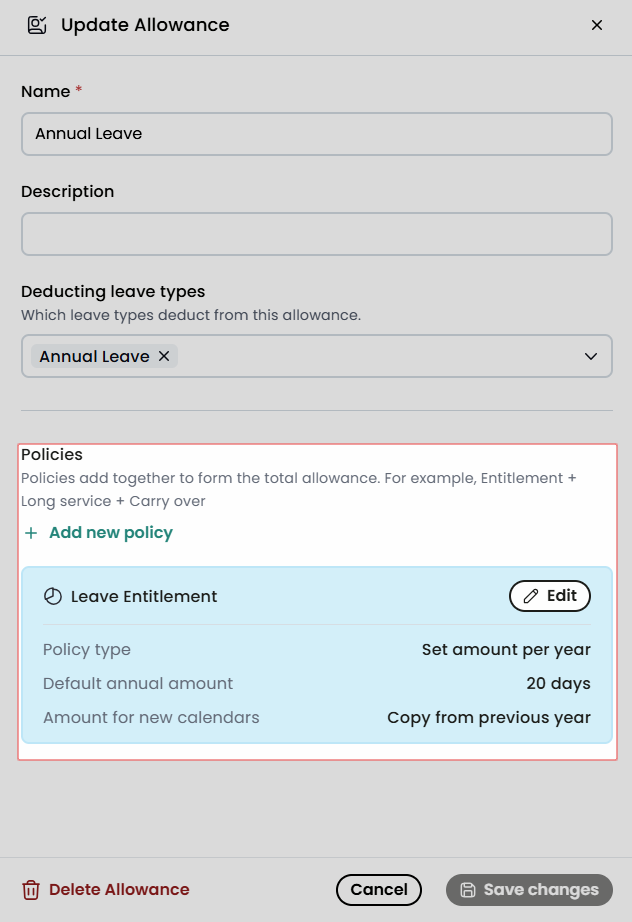
When a new allowance policy is created under Settings > Allowances, Leave Dates uses the following values:
- Default annual amount: 20 days
- Additional leave (e.g. carry over, long service, purchased leave): 0 days
These represent the most common company allowances, but both figures are fully editable by the admin or approver when initiating or modifying a policy. The default annual amount automatically applies to all employees unless individually overridden in their profile.
Allowance Unit
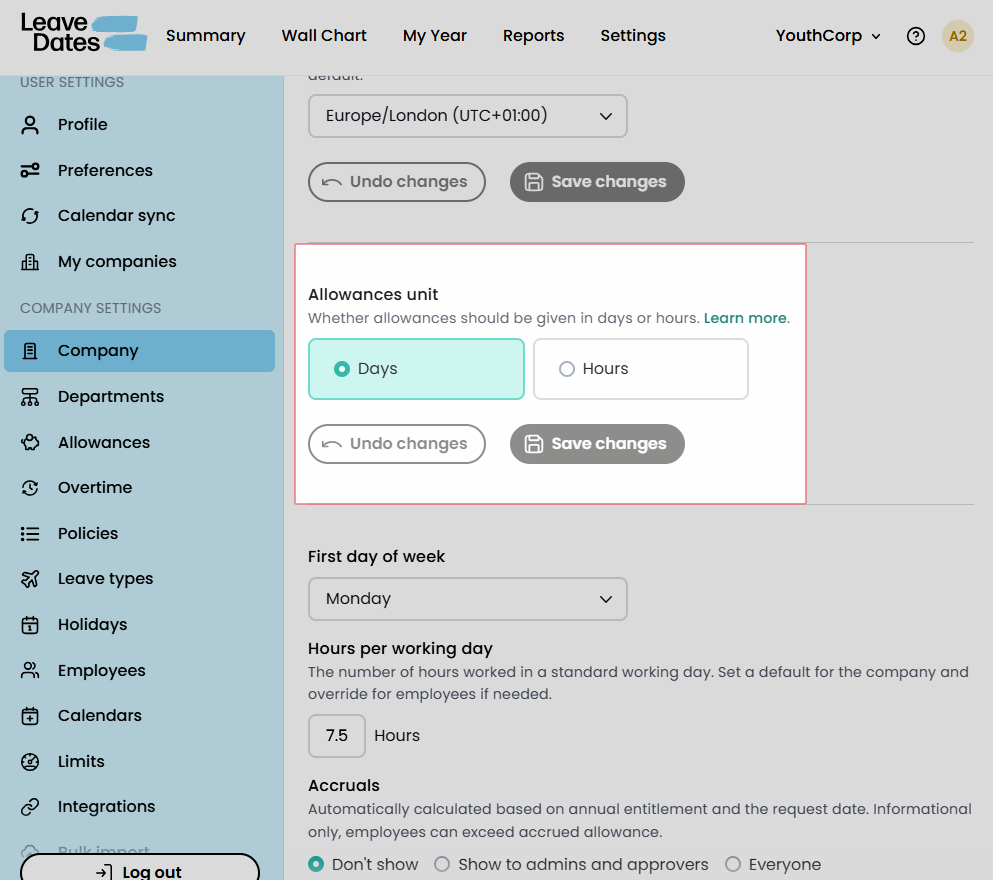
Allowance unit defaults to days across the company. If your organisation tracks leave in hours, this can be changed at the company level under Settings > Company, or overridden per employee under their Employment Details tab. Which leave allowance unit you use dictates the options available to your staff when they book leave.
Carry Over Defaults
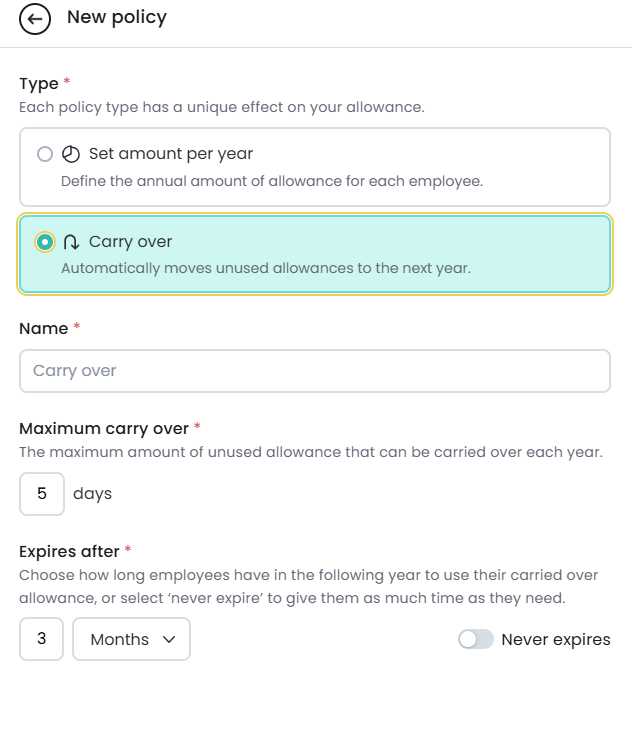
Leave Dates defaults to a maximum carryover of 5 days of unused allowance at year end. Carried-over leave then automatically expires 3 months into the new leave year if not used.
These defaults are configurable per allowance policy (Settings > Allowances > [Allowance] > Carry over policy), where you can set a different maximum, adjust the expiry window, or toggle on the Never expires option.
Work Schedule Defaults
The company-wide work schedule is the baseline that all employees inherit unless individually overridden. The platform default is:
- Hours per working day: 7.5 hours
- Working week pattern: Monday to Friday, 9am to 5.30pm with 1 hour for lunch
- First day of the week: Monday (this affects how weeks are displayed in the Wall Chart and My Year view)
This schedule is important to get right as it is used for calculating and deducting leave accurately, especially when leave is booked for only part of a day. You can configure the work schedule at Settings > Company and if required, it can also be customised per employee under their Schedule tab (e.g. if they are a part-time worker).
Leave Request Visibility Defaults
By default, all leave requests are visible to everyone on the Wall Chart — the leave type, dates, and the fact that someone is absent are all shown to colleagues.
Anyone can mark individual requests as private at the time of booking. When a request is private, it appears greyed out to regular employees; the type of leave is hidden, though the absence itself remains visible. However, admins and approvers can always see the full details regardless of privacy status.
For leave types that require complete concealment (e.g. medical or sensitive leave), admins can set a leave type to hidden on the wall chart — meaning the absence doesn't appear at all for standard users, not even as a greyed-out block.
Employee Profile Defaults
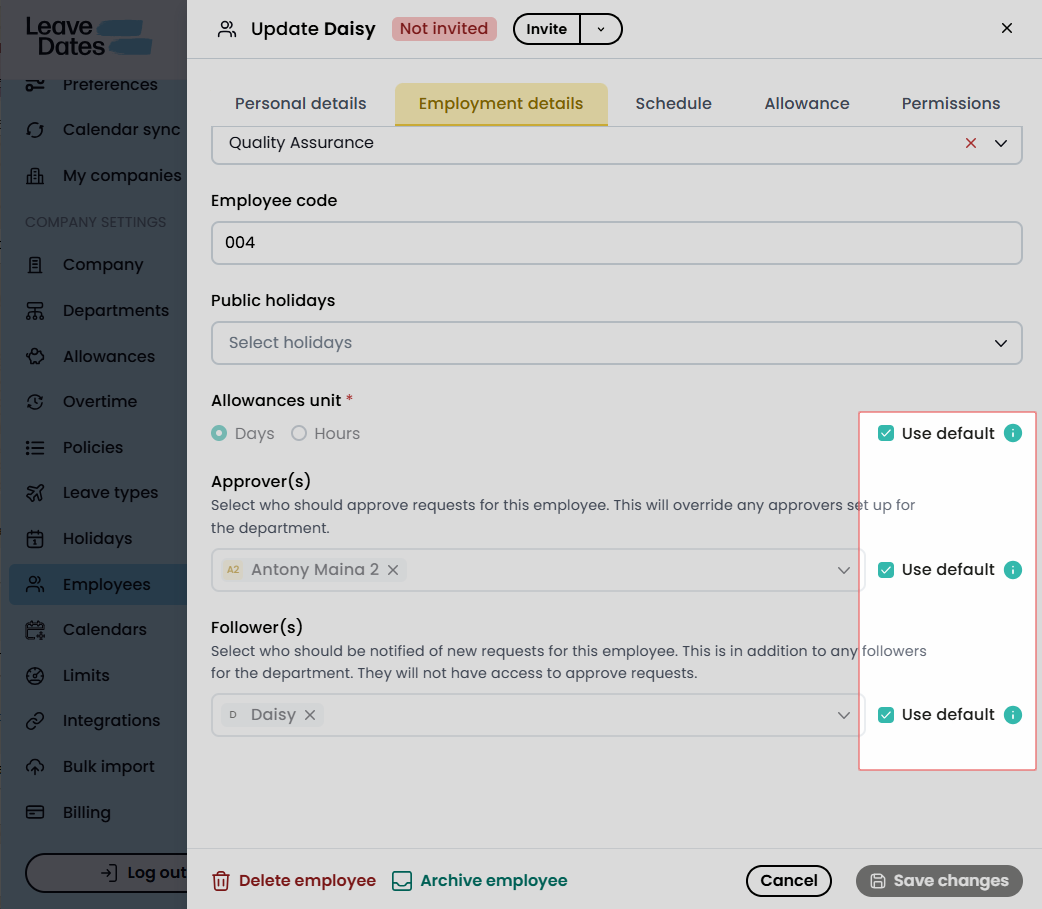
This is where the cascading default logic is most visible. When adding or editing an employee, several fields carry a Use default checkbox that ties the employee's setting to the company or department configuration. This checkbox is automatically ticked for all fields so only needs unticking if you want to manually change an individual employee’s set-up - for example, if the head of a department is set as the approver of that department, you will likely need to select a different approver for them so they are not sent their own leave requests.
Employment Details tab
- Allowance unit — defaults to the company-level allowance unit setting.
- Approver(s) — defaults to the approver(s) assigned to the employee's department. If neither the employee nor the department has an approver set, company admins automatically become the approver.
Schedule tab
- Hours per day — inherits from the company work schedule.
- Work schedule — inherits from the company work schedule.
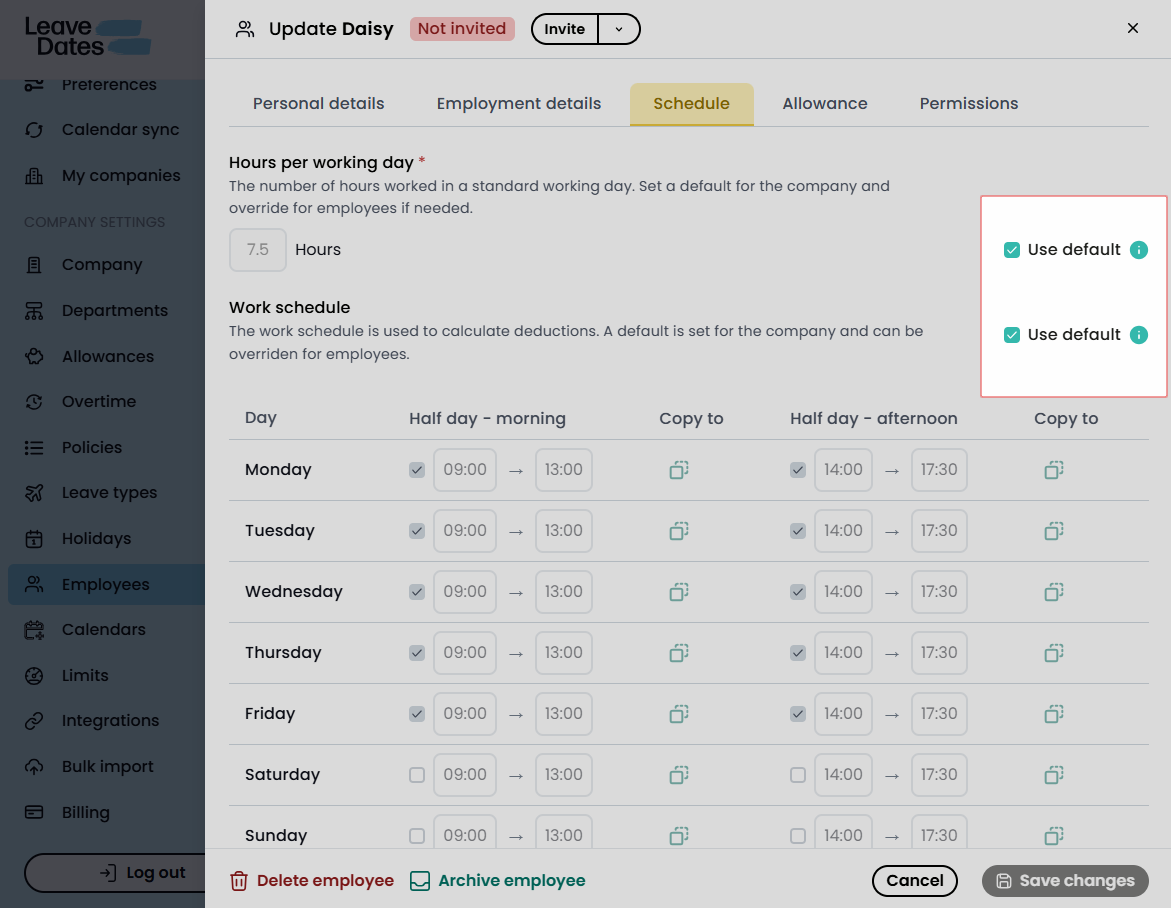
Permissions tab
- All permission settings (what the employee can see in the Wall Chart) default to Everyone, meaning new employees can view the full wall chart. Wall chart visibility is set at the department level and inherited unless individually overridden.
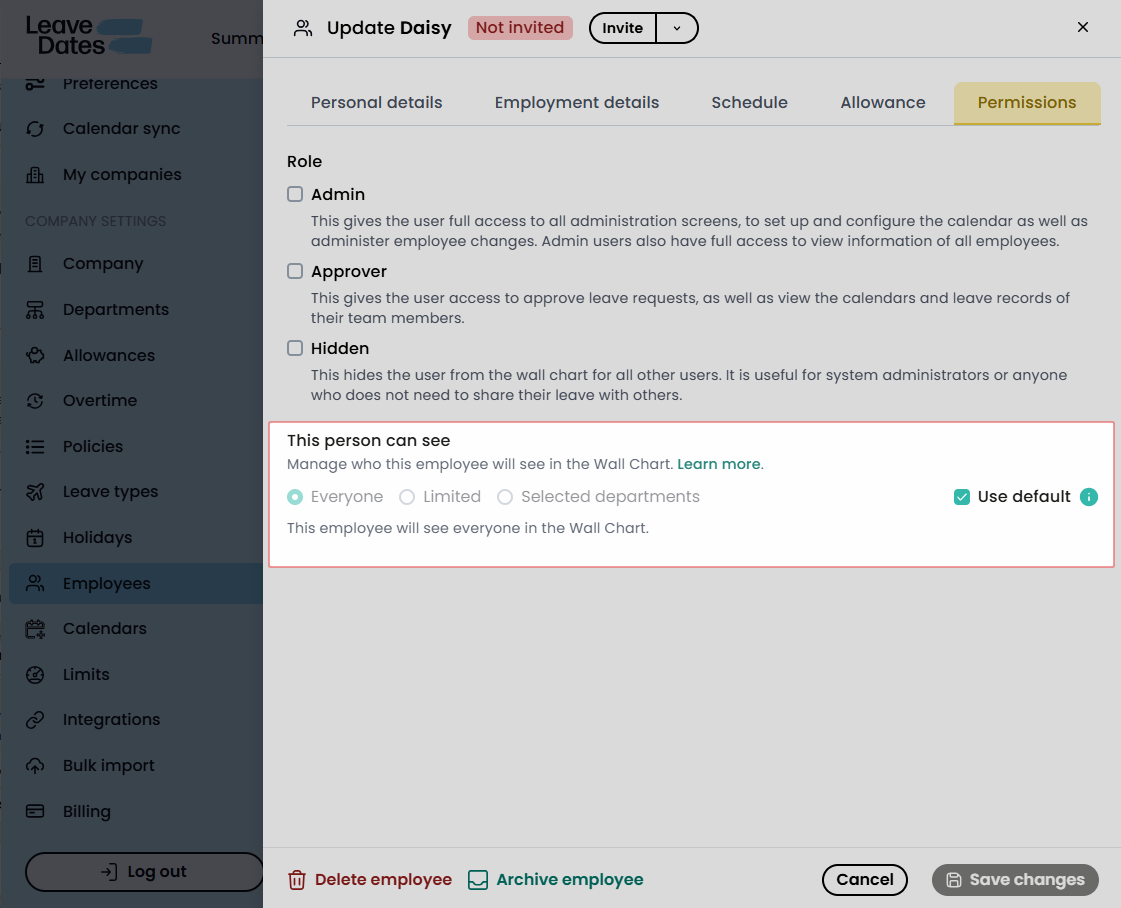
Unticking Use default for any of these fields breaks the inheritance and allows you to configure that setting specifically for the employee. Likewise, if an employee has previously needed different settings and you want to revert them back to the default - for example if they are switching from part-time to full-time hours and therefore can now be on the default work schedule - just tick the Use default checkbox for each relevant setting to automatically change their set-up to the company/department configuration.
Notification Defaults
Leave Dates is configured to notify users by email for:
- New leave requests and approvals — on by default.
- Comments on leave requests — on by default.
Notifications are also always sent as in-app alerts (visible when logged into the website) and as mobile push notifications if the app is installed. Each user can individually choose to turn off email notifications under Settings > Preferences.
If a user has also connected their Slack account to Leave Dates, a daily leave summary report is sent Monday to Friday at 9am by default but can be changed in Slack itself.
Preferences Defaults
Each user can set their own preferences. Under Settings > Preferences, the following defaults apply:
- Date format: DD/MM/YYYY
- Time format: 24-hour clock
- "Mark my leave requests as private by default": Off by default – leave requests are public unless this option is enabled or the user manually marks an individual request as private at the time of booking.
- Birthday sharing: Enabled by default. A cupcake icon appears on the Wall Chart to indicate when an employee's birthday is. The icon highlights the birthday without displaying the employee's age, this feature can be turned off if preferred.
Company & Multi-Company Defaults
Leave Dates supports managing multiple companies under a single login — useful for HR service providers or group structures. When multiple companies are configured:
- The first company created is set as the default automatically.
- For companies created after the first one, admins can choose which company opens automatically when they sign in. This can be done by selecting Set as default under Settings > My Companies, or directly from the company switcher dropdown in the top-right corner of the platform.
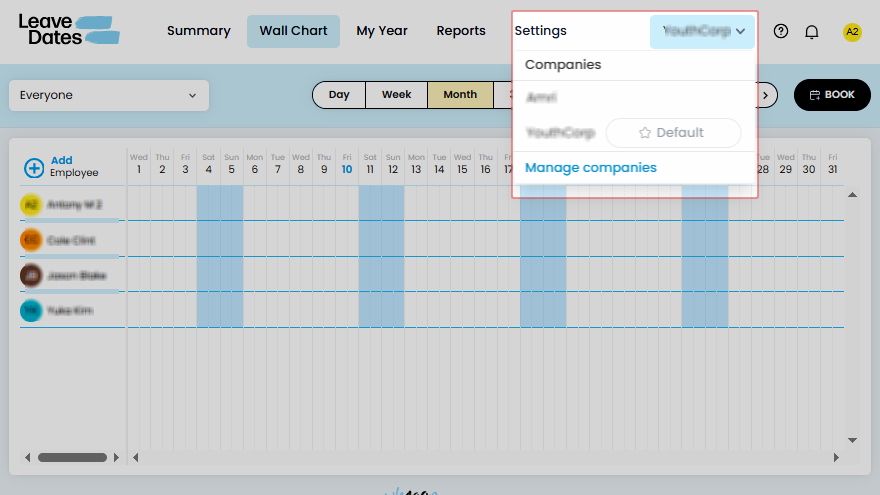
Any action performed in the platform applies only to the currently selected company, and any users added will only have access to the company they were added to.
Time Off in Lieu (TOIL)
Time Off in Lieu is turned off by default in Settings > Overtime. It must be explicitly enabled if your organisation compensates overtime with leave credits. Once enabled, approvers can manage TOIL balances for their direct reports, and admins can manage it for anyone in the company.
Cancellation Defaults
By default, only approvers/admins can cancel leave requests in the past and this setting cannot be changed. All users can cancel future leave requests and their approver will be notified of the cancellation.
Further Reading
- Manage leave allowances
- Set up a company on Leave Dates
- Manage employees
- Setting up approvers
- Carrying over unused allowances
- What does 'Private' mean?
- Control what staff can see in the Wall Chart
- Setting your preferences
- Working with multiple companies
- User roles and permissions