
Manage leave allowances
Leave allowances define how much leave employees can take within a year. If your company limits the number of days or hours that can be booked off, this is configured using allowances.
Examples:
- Employees are allowed 21 days of annual leave per year.
- The company allows 5 paid sick days per year.
An allowance is made up of one or more policies, which together determine the total leave available to an employee.
In this article
- View and manage leave allowances
- Add a new leave allowance
- Set up a leave allowance with a carry over policy
- How policies calculate the total allowance
- Delete a leave allowance policy
- Delete a leave allowance
View and manage leave allowances
To view or manage allowances:
- Go to Settings > Allowances.
- From this page, you can:
- View all existing leave allowances
- Click Add Allowance to create a new allowance
- Select an existing allowance to edit or delete it

Add a new leave allowance
To add a new allowance, go to Settings > Allowances.
- Select Add allowance.

-
In Name, set the name of the new leave allowance and in Description, provide a brief explanation of what the leave covers.
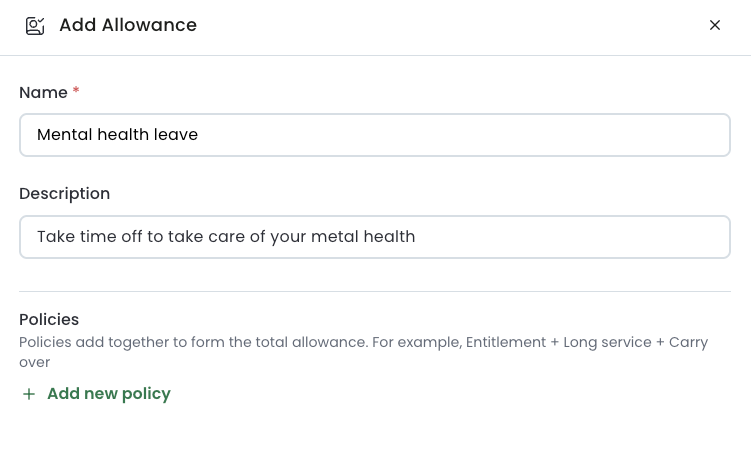
- In Policies, select Add new policy.
-
Select the policy type: can either be a set amount per year or carry over unused allowance.
For this example, we’ll use the set amount per year option. You can skip to how to set up a leave allowance with a carry over unused allowance policy to learn about that.
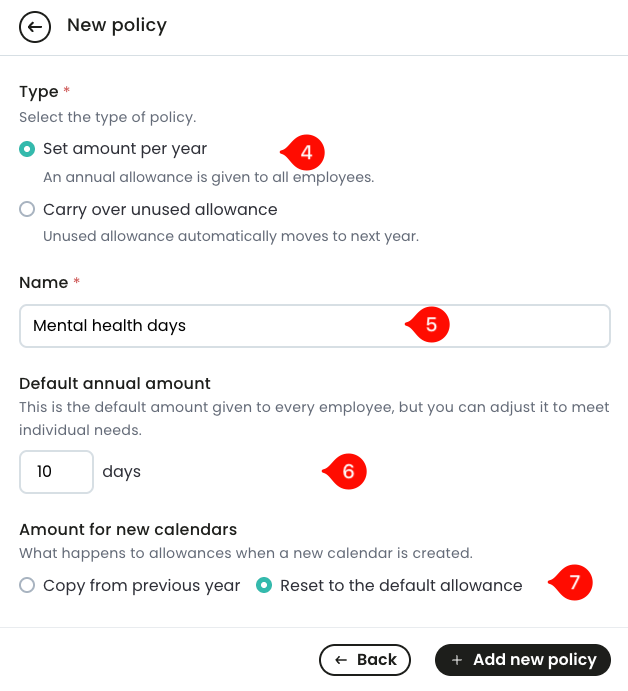
- In Name, enter the name of the leave policy.
- In the Default annual amount, enter the number of leave days or hours each employee gets each year. The default annual leave allowance amount is applied to all new employees. You can override it for individual employees under Settings > Employees, in the Allowances tab of the employee profile.
- In Amount for new calendars, select what happens when a new calendar is created. The options are:
-
Copy from previous year: when a new calendar year starts, employee leave allowance for the new year is copied from what they were assigned the previous year.
For example, your company allows each employee 21 leave days - the default annual amount. John was assigned 24 days leave allowance in his 2025 leave calendar. When the 2026 leave calendar is created, John will automatically be assigned 24 days and not the default 21 days.
-
Reset to the default allowance: the employee allowance under this policy for the new calendar is equal to the default annual amount.
Using John’s example, his 2025 leave allowance was set to 24 days. In 2026, John will be assigned 21 leave days which is the default annual amount for all employees.
- Select Add new policy to finish.
Set up a leave allowance with a carry over policy
A carry over policy allows unused leave to roll over into the next year. Each leave allowance can only have one carryover policy.
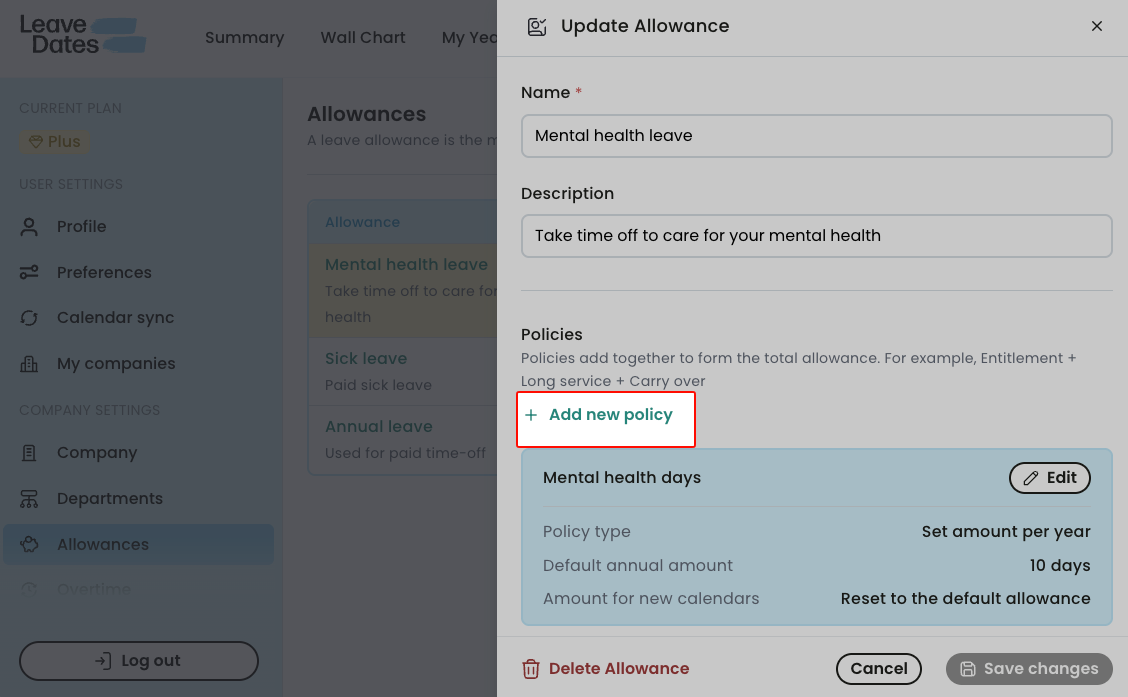
Continuing with the Mental health leave we created in the previous section, we can add carryover policy to allow employees to rollover a certain number of days to the new year.
To add a carryover policy to a leave allowance, go to Settings > Allowances.
- Identify the allowance to which you want to add a carryover policy. Click on the name of the allowance.
-
In policies, select Add new policy.
-
In Type, select Carry over unused allowance.
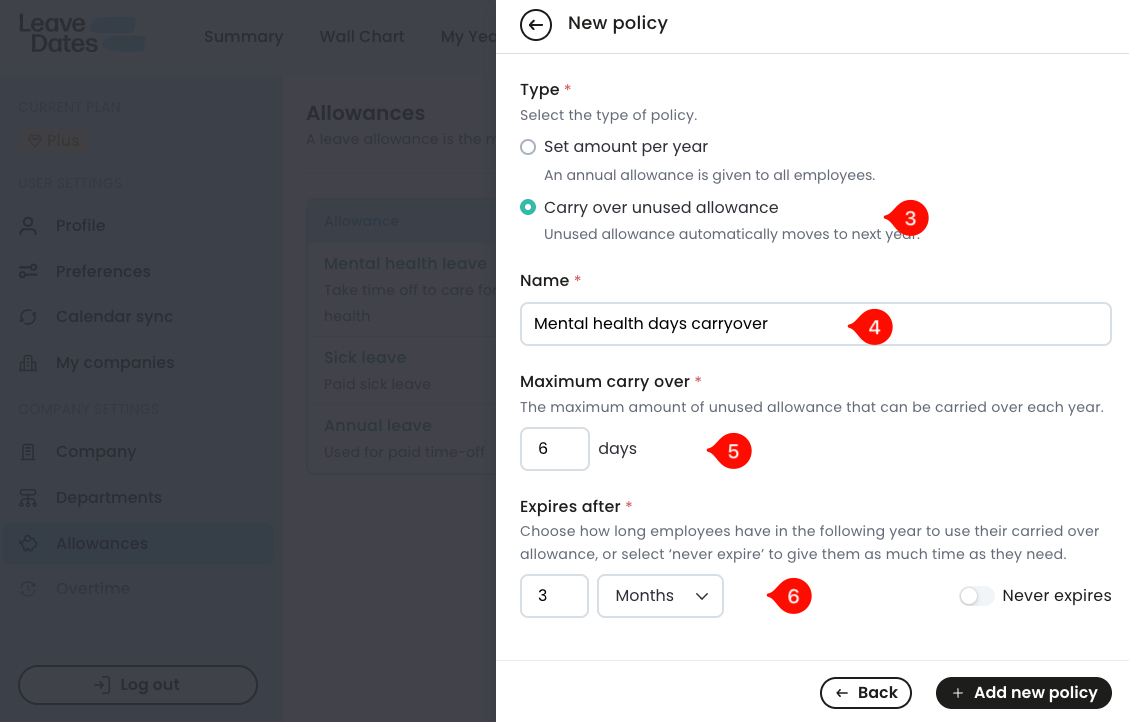
- In Name, set the name of the carryover policy.
-
In Maximum carry over, specify the maximum unused leave that an employee can carry over into a new year.
The maximum carryover setting encourages employees to use their leave within the year. For example, if your company offers 10 mental health leave days per year with a maximum carryover of 6 days, and John uses only 2 days, he will have 8 unused days at year end. However, only 6 of those days can be carried into the next year. The remaining 2 days are lost and cannot be used.
-
In Expires after, set the number of months or days after which the carried over leave will expire. Alternatively, you can toggle the Never expires button to remove the expiry.
If an employee does not use their carried over leave and it expires, all the unused leave carried over from the previous year is marked as Expired carry over. An admin can adjust the expired carry over balance on the employee profile.
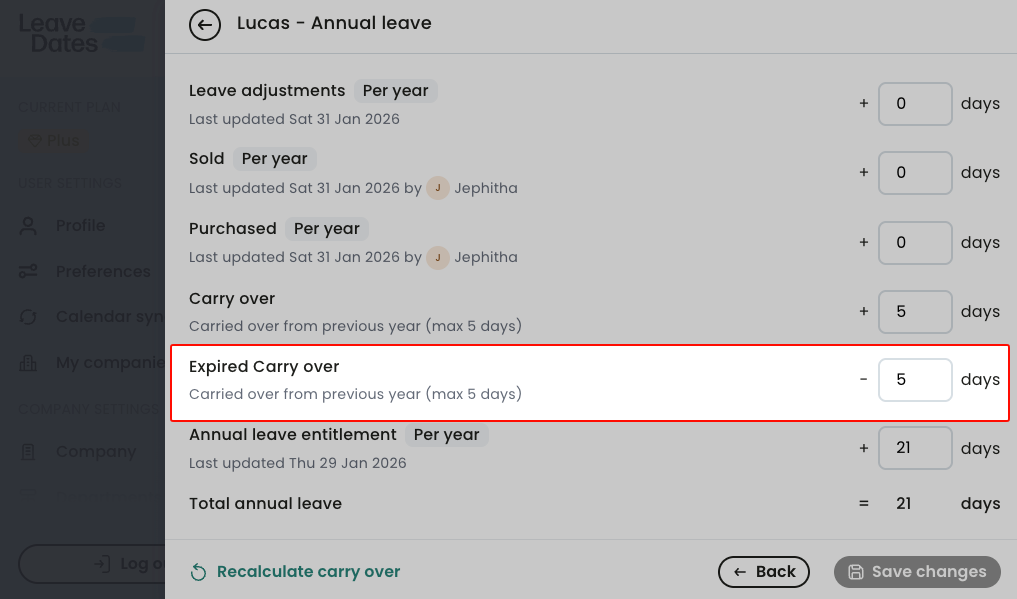
Expired carry over as shown to admin users. - Select Add new policy to finish.
Admins can make exceptions and overwrite the carryover amount for individual employees in Settings > Employees > Allowance.
How policies calculate the total allowance
An allowance can include multiple policies. These policies are added together to calculate the total leave available.
Example:
Annual leave = Leave entitlement + Carry over + Long service
Additional policies can also be included, for example:
Annual leave = Leave entitlement + Carry over + Birthday + Purchased + Long service
A leave policy can have a positive or negative number, depending on how leave is earned, used, or adjusted.
A positive leave balance on a policy indicates that that policy will generally increase the leave an employee is entitled to while a negative leave indicates a reduction in employee leave.
For example, if your company allows employees to trade their leave, you can have Purchased and Sold leave policies. In that case, an employee who purchases leave is entitled to more leave than they would normally get. On the other hand, the employee who sold their leave would have less leave.
Say, John sold 4 days of leave to Mary.
John’s annual leave = Leave entitlement - Sold leave
Mary’s annual leave = Leave entitlement + Purchased leave
Delete a leave allowance policy
When you delete a leave allowance policy, it is permanently removed from your account. This action is irreversible and leads to the loss of all configuration in the policy. It also affects all employees in your organization who may/would have benefitted from the policy. You should make proper consideration before deleting a leave policy.
To delete a leave allowance policy, go to Settings > Allowances.
- Click on the name of the allowance where the policy is listed.
-
In Policies, identify the policy you want to delete and select Edit.
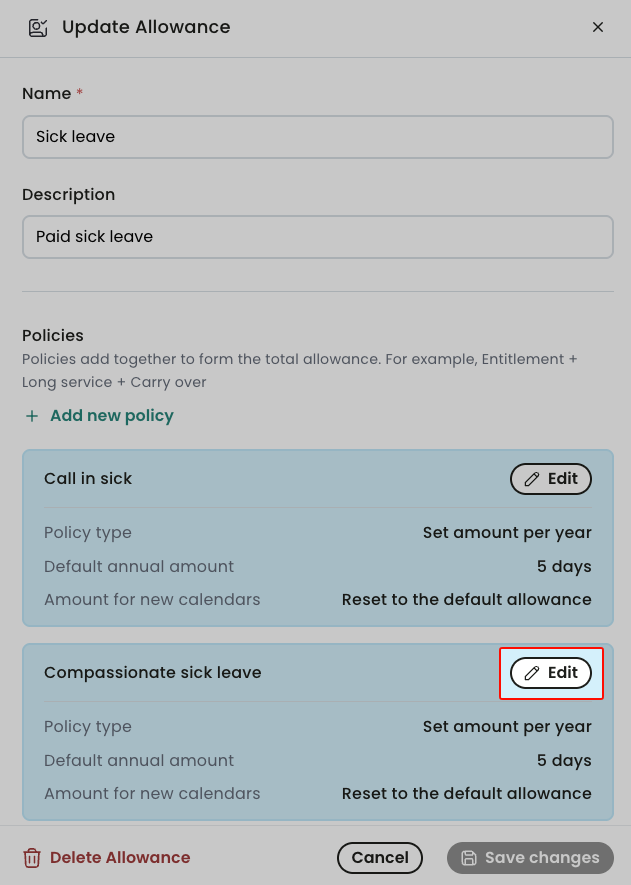
-
Select Delete policy.
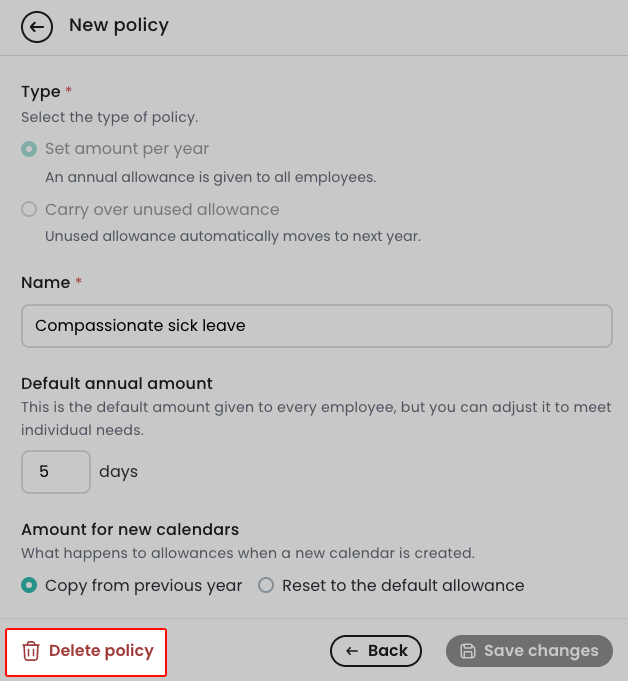
Each leave allowance must have at least one policy. You can only delete a leave policy if the allowance has at least two policies.
Delete a leave allowance
To delete a leave allowance, go to Settings > Allowances.
- Click on the name of the allowance you want to delete.
- Select Delete allowance.
Deleting an allowance also deletes all policies associated with it. This action is irreversible and care should be taken to only delete allowances that are no longer needed.
