
Add and assign public holidays to employees
In most parts of the world, public holidays are considered non-working days. Employees do not have to book public holidays off on their calendar. For most companies, public holidays do not count towards an employee’s annual leave entitlement. Therefore it is important to ensure that each employee is assigned the appropriate public holidays based on the country or region where they work from.
In Leave Dates, you can use public holidays from over 150 countries. You can add public holidays from more than one country or region as needed.
In this article
- Add public holidays
- Assign holidays to employees
- Enable automatic holiday imports
- Public holidays on the wall chart
Add public holidays
Initially, no holidays are added to your account when you first Join Leave Dates. Your employees do not have any holidays assigned to them and they may need to book holidays off on their calendar.
- To add holidays, go to Settings > Holidays.
- Select Add holidays.

- Select the Year, Country, and Region to import holidays from. The location name is filled in automatically using the country and region selected, but you can change it to create a custom name if you prefer. This can be useful for creating sets of national holidays that differ by religion for example. The location name must be unique. Then, select Next.

- Confirm the public holidays listed for the selected country and region.
-
Optional: Add a custom holiday. Learn more about custom holidays and extra working days.
A custom holiday can be any day that your company intends to give to employees as an additional leave day. For example, many companies have a shutdown period between Christmas day and New Year’s day. Any working day between these days can be added to the calendar as a custom holiday.

- Select Close to finish.
Assign holidays to employees
An employee can be assigned all public holidays in their country. No employee can claim public holidays from more than one country. If an employee relocates, they need to be assigned the holidays for their new country and region.
To assign public holidays to employees,
- Go to Settings > Holidays.
-
Select the location/country where your employees reside and where you have added holidays.
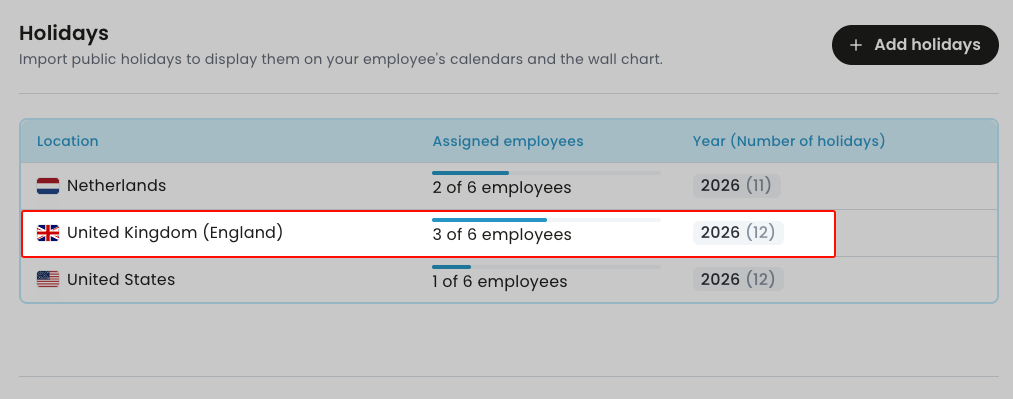
-
Select Assign employees.
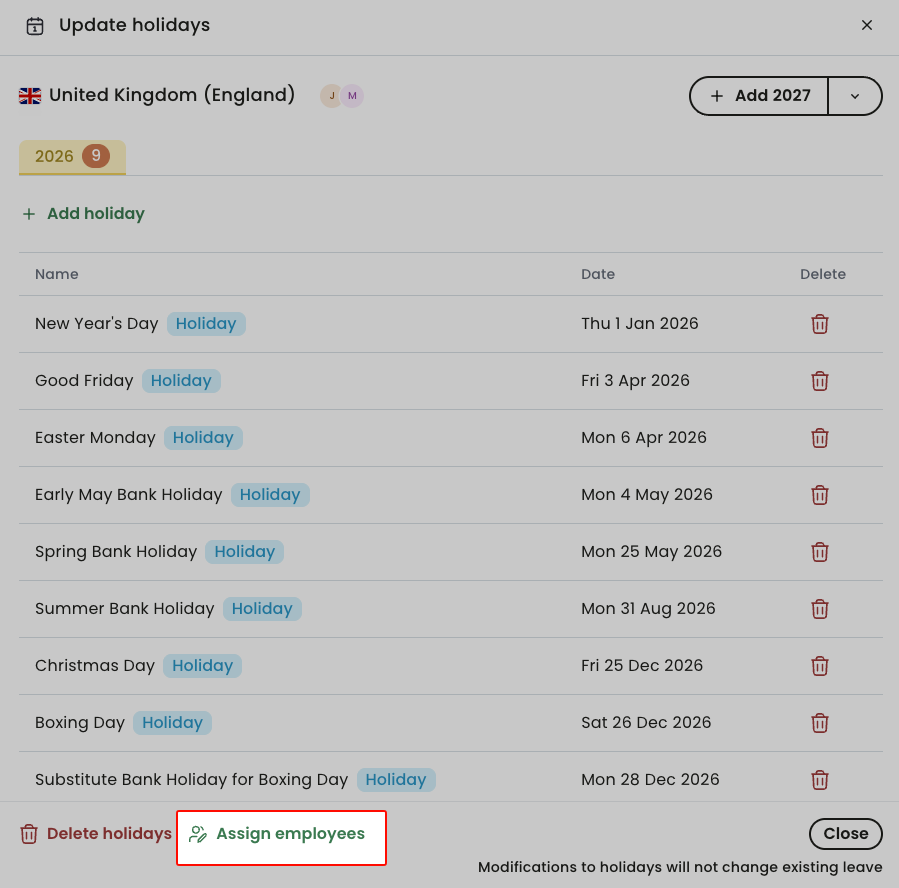
-
Select all the employees residing in the selected country and region.
If all your employees are in the same region, you can select Assign to all.
Use the search bar to find an employee by their name.
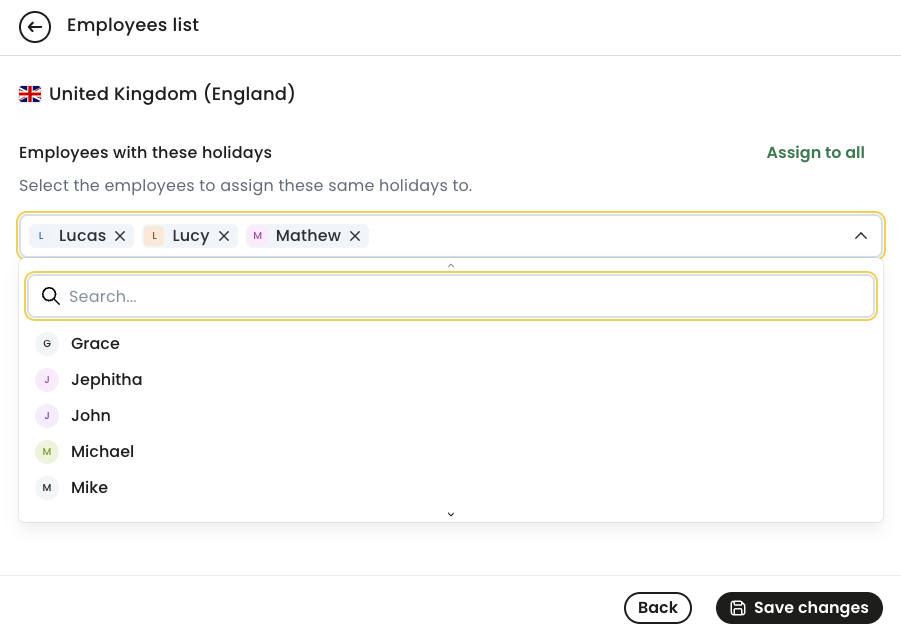
- Select Save changes.
Assign holidays per employee
You can also assign holidays on a per employee basis. This is especially useful if an employee has relocated to a different country, region, or state.
To assign holidays to an individual employee,
- Go to Settings > Employees.
-
Select the name of the employee you want to assign holidays.
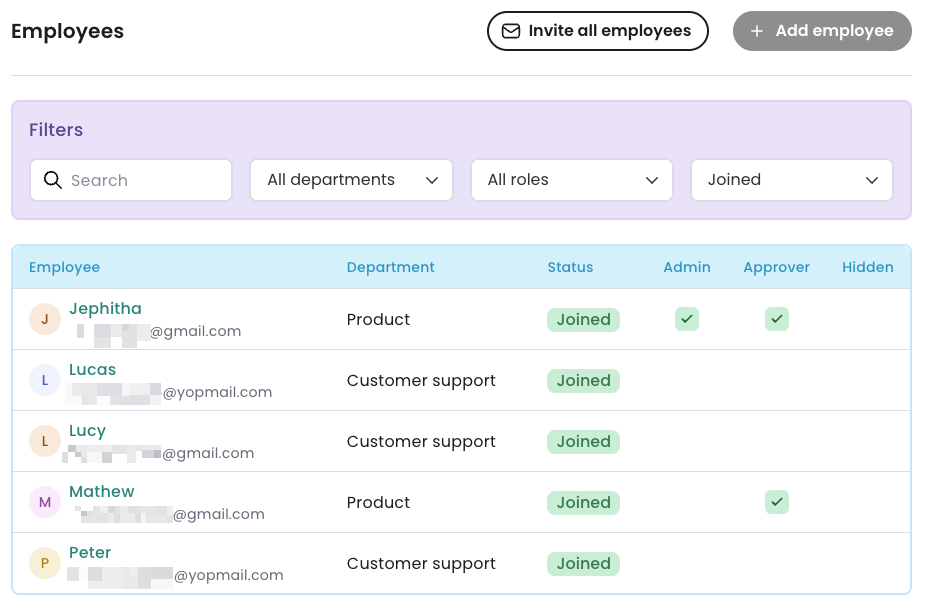
- Click on the Employment details tab.
-
In Public holidays, select the country or region of the employee.
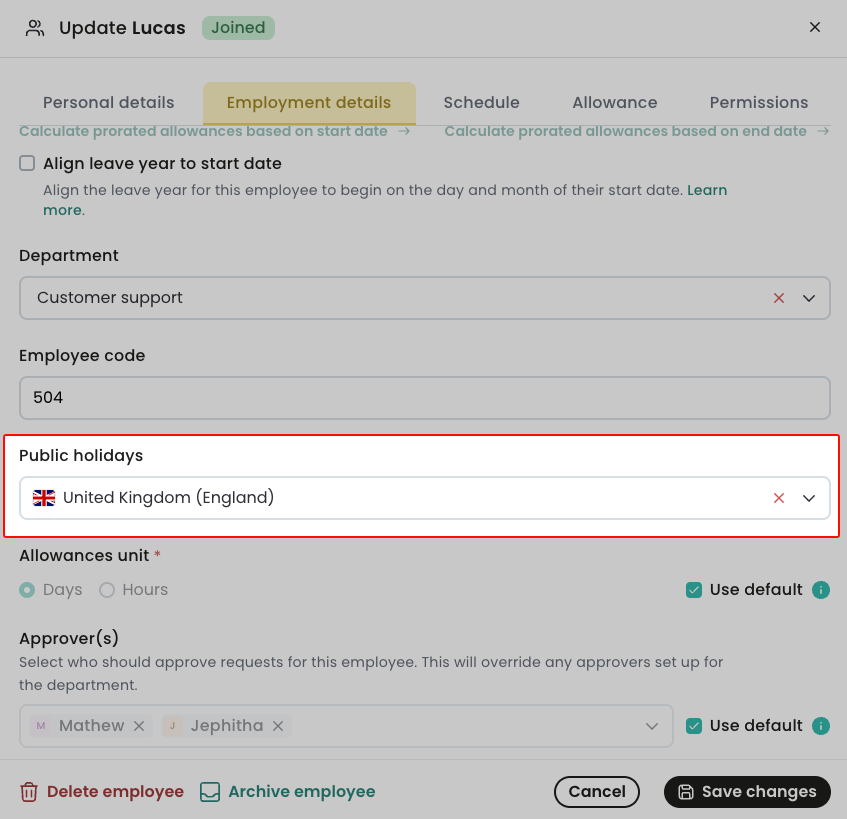
- Select Save changes.
Any applied or approved leave is not affected when you assign holidays to an employee.
Enable automatic holiday imports
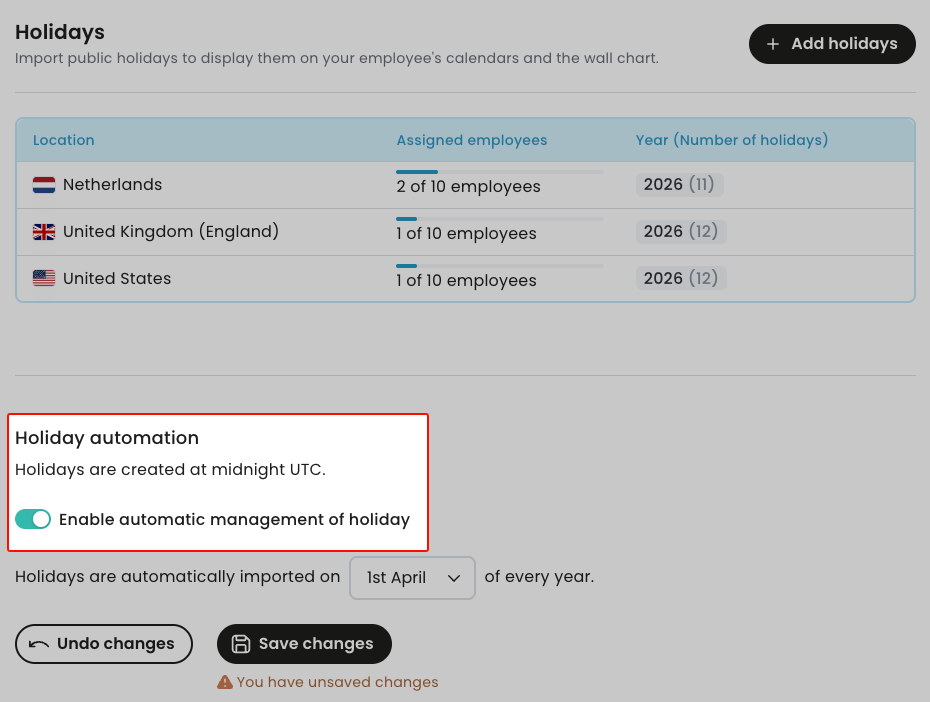
Leave Dates can automatically import holidays for all the countries or regions you have set up. For example if you have already set up holidays for Netherlands, UK (England), and the US and turned on automatic holiday imports, Leave dates would automatically import and assign holidays for the new year to each employee. For this to work, all holidays are imported on a specific day of your choosing, say, the start of your financial year or the start of the calendar year, e.t.c.
To enable automatic holiday imports,
- Go to Settings > Holidays.
-
Toggle to turn on the Enable automatic management of holiday.
-
In Holidays are automatically imported on, select the day when Leave Dates should automatically add and assign holidays for countries and regions you have set up.
Here, you can only select the first day of the month for any of the twelve months.
- Select Save changes.
Public holidays on the wall chart
In the Wall Chart, public holidays are shown to all users and they are marked by boxes with angled light blue stripes. Weekends are marked with solid light blue squares - these combine to form a vertical light blue strip.
