Manage leave limits
Leave limits enable you to ensure you always have a functional team and that work does not slow or delay because multiple people have taken leave on the same day. With limits, you can set the maximum number of people taking same day leave across the company or in a certain department. When a limit is reached, you can either block new leave applications or show warning messages to discourage employees from taking leave.
In this article
Limit how many people can take same day off across the company
Limit how many people can take same day off per department
Lock particular dates to prevent employees from taking leave
How overlapping limits are enforced
Block new leave applications or show warning messages?
Leave limits in the Wall chart
Limit how many people can take same day off across the company
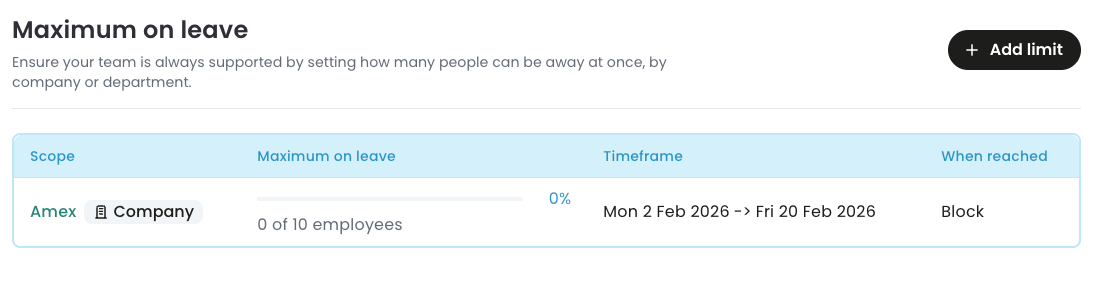
Company-wide leave limits specify how many employees across the company can take leave on the same day.
To create company-wide leave limits,
- Go to Settings > Limits.
- Select Add limit.
- In Scope, select Company.
- In Maximum on leave, enter a number that is less than the total employees you have in the company.
- Optional: To create a temporary restriction, select the start date in ‘From’ when the leave limits should begin, and end date in ‘To’ when the limit should end. If both dates are left empty, the leave limit will remain in effect until it is removed or updated.
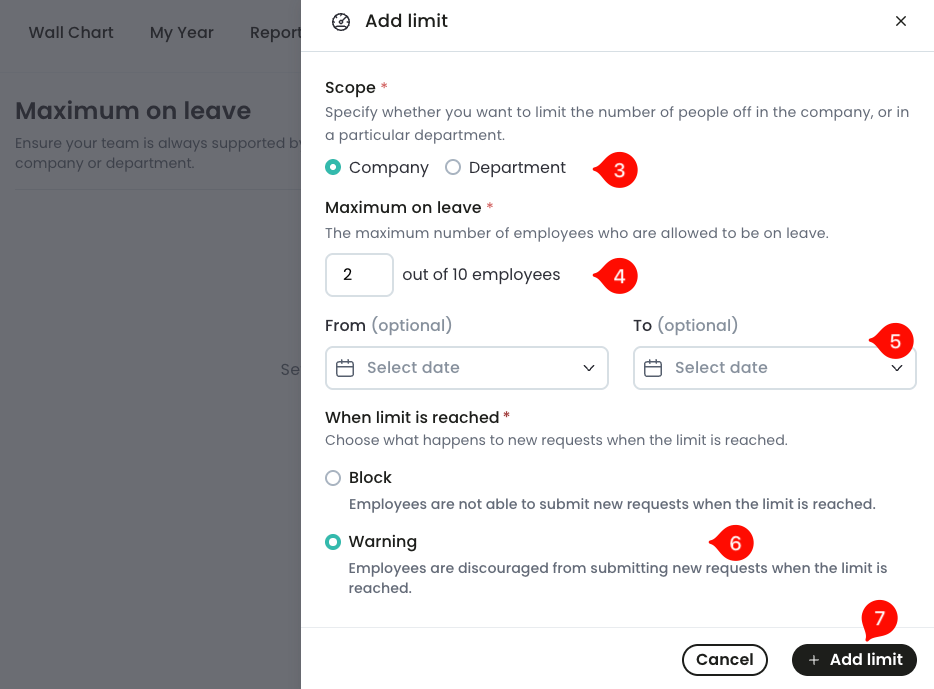
- In When limit is reached, select either Block or Warning.
- Block - this option effectively prevents employees from submitting new leave requests without affecting any existing leave.
- Warning - With this option, employees can still submit leave requests but will see a warning if they exceed their limits. The approver can then decide whether to approve the request.
- Select Add limit.
Limit how many people can take same day off per department
- Go to Settings > Limits.
- Select Add limit.
- In Scope, select Department.
- In Department, select the department to which the limits will apply.
-
In Maximum on leave, enter a number less than the total employees you have in the selected department.
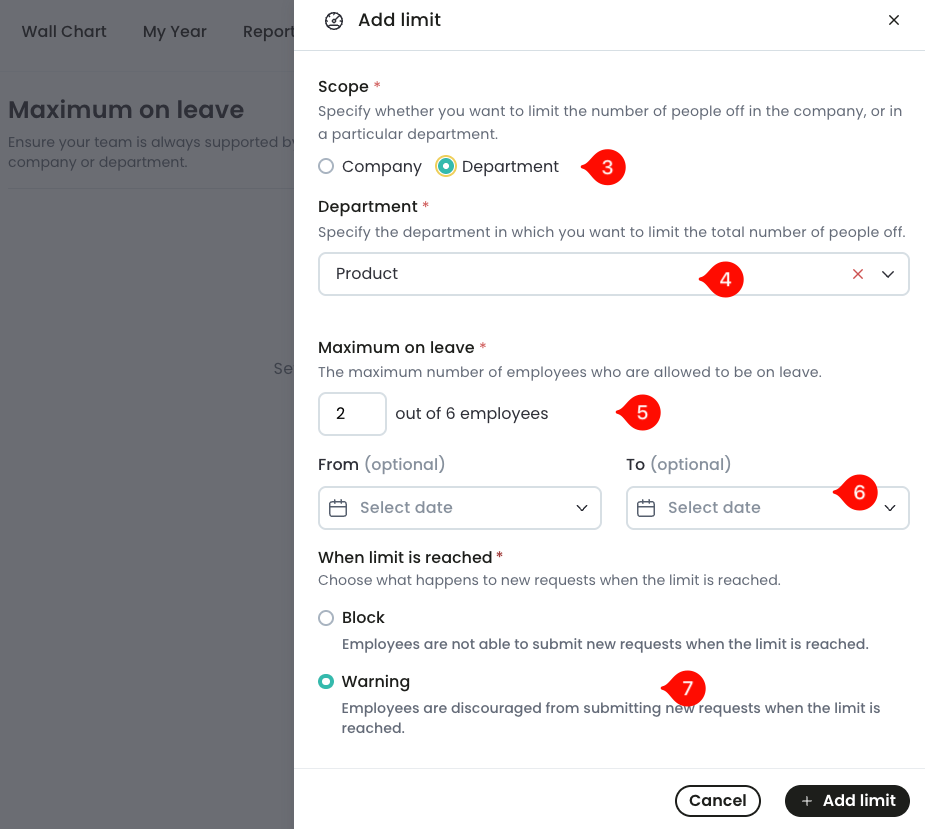
- Optional: In From, select the start date when the leave limits should be enforced. And in To, select the end date of the limit.
- In When limit is reached, select either Block or Warning.
- Block - this option effectively prevents employees from submitting new leave requests without affecting any existing leave.
- Warning - with this option, employees can still submit new leave requests. However, they will see a warning message indicating that their application exceeds leave limits.
- Select Add limit.
How to set a blackout period (Block new leave)
There are situations where the company or department needs all hands on deck. Think about cases of critical operation periods such as during auditing or product launches. In these and other situations, you may want to temporarily block new leave applications.
To facilitate this, you can use Leave Dates to block a portion of the calendar and ensure you have full staff availability. You can set leave limits for a single date or a range of dates and for specific departments or the entire company.
Additionally, you can set the limit to completely block new leave applications or just show a warning to discourage employees from applying. When left as a warning, approvers will get the warning when reviewing new leave. They can either approve or decline at their own discretion.
To lock a date or a range of dates and prevent leave requests,
- Go to Settings > Limits.
- Select Add limit.
-
In scope, select either Company to block new leave requests across the company, or Department to block new leave requests for a particular department.
You can create multiple leave limits if you want to block leave in more than one department and not across the company.
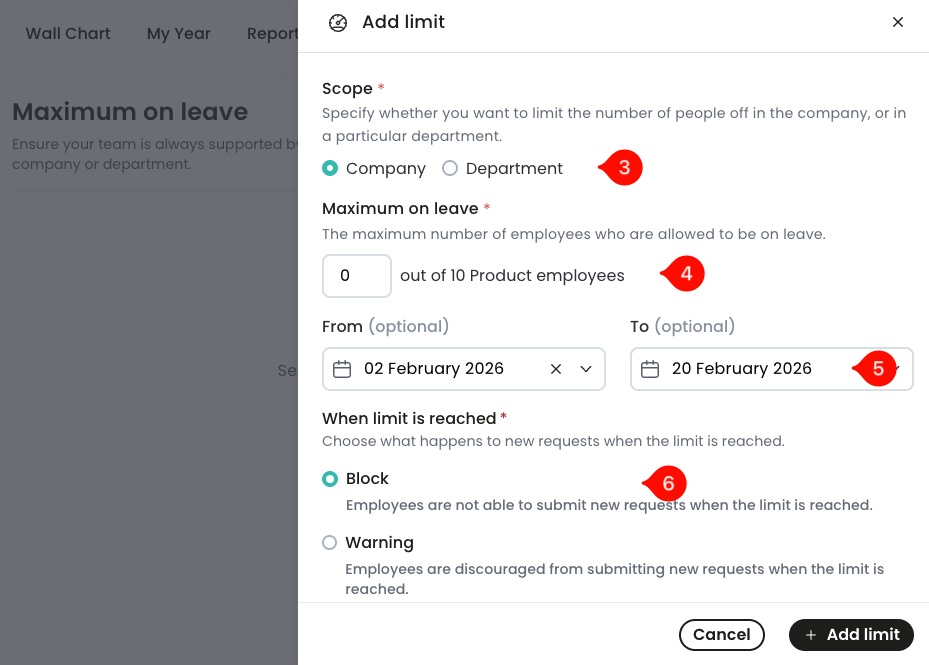
- In maximum on leave, enter zero. This means nobody can apply for new leave.
- In the From and To date fields, enter the first and last dates when this limit should be enforced. You can select just the start date and have the limit enforced until you remove or update it.
- In when limit is reached, select Block. This ensures that employees are blocked from applying for leave, thereby assuring you of their full availability during a critical time for the company.
- Select Add limit.
How overlapping limits are enforced
When multiple leave limits overlap (e.g., 3 people company-wide and 1 person in a specific department), each limit is evaluated independently, and whichever limit is reached first takes priority, effectively enforcing the lowest limit. This means you can apply a temporary lower limit (such as during a blackout period), but not a higher one, as the system will always enforce the most restrictive limit.
Block new leave applications or show warning messages?
When creating leaving limits, admins must make the choice of whether to completely block new leave when the limits are reached or to just show a warning message and give approvers discretion to approve or reject new leave.
And while we cannot say with certainty that one option is better that the other in any situation, we can give you examples of when to use either option.
When to block new leave when limits are reached
- Minimum staffing or safety critical roles - departments where falling below the minimum staffing needs creates a safety risk or legal non-compliance.
- Pre-announced company-wide blackout periods - the employees are notified in advance, so there’s no need to make exceptions.
- During high risk business events - for example during system migrations or critical product launches.
- Specialist roles in small teams - you can temporarily block leave for specialist teams where absence cannot be absorbed by other team members.
When to use the warning option
- Teams with flexible scheduling or project based environments
- Partial coverage risks
- Legal compliance
- When handling exceptions, such as unplanned events (e.g., funerals), where the leave may still need to be approved despite the limits.
Making exceptions
If you need to grant leave during a blocking limit, consider using the warning option instead. This allows employees to submit requests while giving approvers the flexibility to review and approve exceptions when necessary.
Leave limits in the Wall chart
In the Wall chart, leave limits aren’t displayed unless they have been reached. When reached, leave limits are shown as red boxes over the dates for which the limit applies. Limits can either be shown for all employees or for employees in certain departments.

Remove leave limits
To delete leave limits,
- Go to Settings > Limits.
-
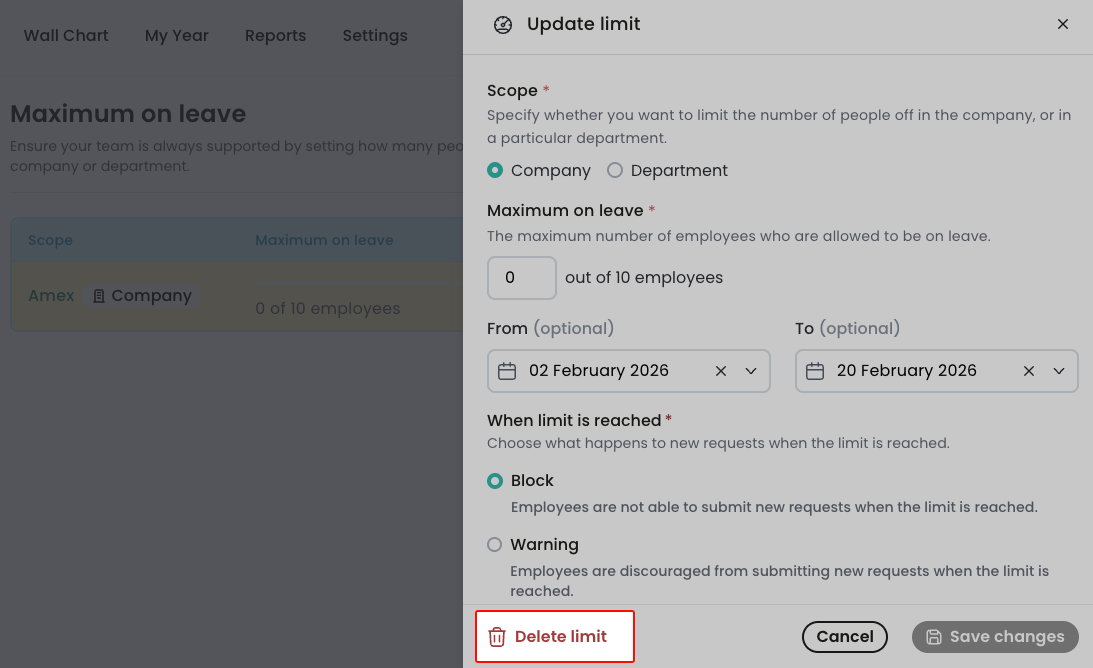
Identify the limit you want to remove and click on it.
-
Select delete limit.