
How to lock dates to prevent staff from booking leave
There may be times when you need to block or discourage new leave and have maximum staff availability. Think about team events, training, auditing, and product launches, among other things.
To block such dates dates in Leave Dates, you can set the maximum number of people on leave to zero.
To block dates to prevent new leave,
- Go to Settings > Limits.
- Select Add limit.
-
In Scope, select Company or Department depending.
Use the department option to block leave in one or more departments without blocking it across the company.
-
In Maximum on leave enter 0 (Zero).
This ensures none of the employees in the company or selected department can apply for leave.
- In From and To, enter the first and last blocked dates respectively. These dates are included in the blocked time.
- Select what happens when limit is reached. Here, you can choose Block to completely block new leave, or Warning to show a warning message to employees applying for new leave and approvers reviewing new leave requests.
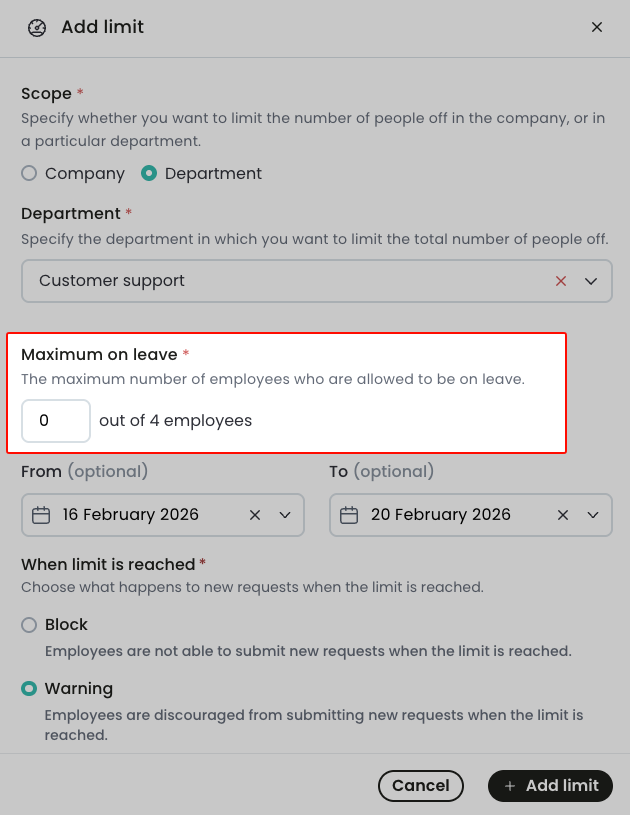
Leave limits can be set for individual dates or a range of dates and for specific departments or the entire company.
You can choose set the limit to be a complete block, so that staff can't book any leave at all. Or just show it as a warning to discourage any leave being requested but leaving it to the approver to decide.