
How to align the leave year with an employee's start date
Some companies choose to begin the annual leave year on the date that the employee starts at the company. The benefits of this are that there are no difficult calculations when it comes to accruals, and it can avoid the situation where all your employees are trying to use up their remaining allowances at the same time of year.
In Leave Dates, it is possible for employees to use a different start date for their leave year compared to the standard company leave year.
Setting up employee leave years
Here are the steps to configure an employee with a leave year which starts on a different date to the company leave year:
- Check that the company is set up with an annual leave year starting on the 1st January. Check this in the Settings > Calendars page.
- Go to the Settings > Employees page and click on the employee you want to set up.
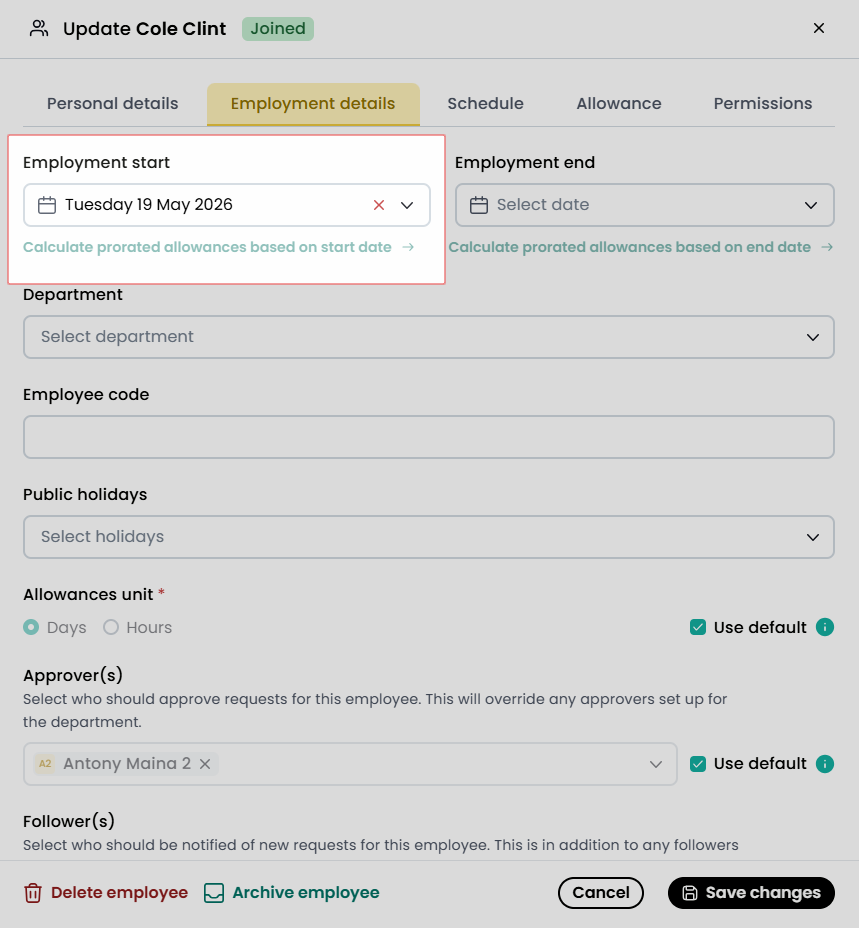
- In the Employment details tab, enter the employee start date
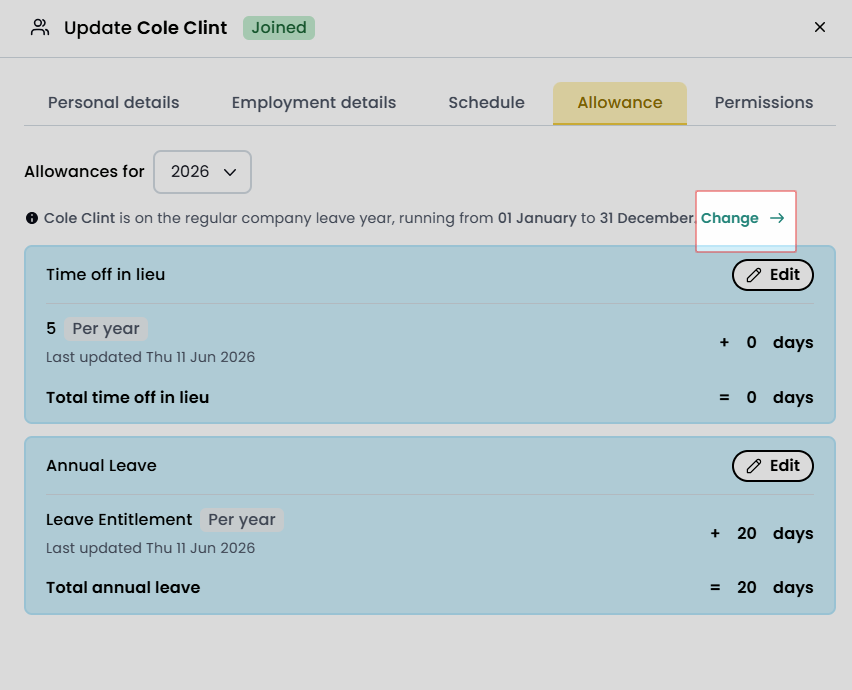
- Proceed to the Allowance tab. Here you find an indication of whether the employee is on the regular company’s year. If so, click on the Change link
- A prompt as shown below will appear for leave year start date with three options:
- Company start date
- Employment start date
- Customize start date
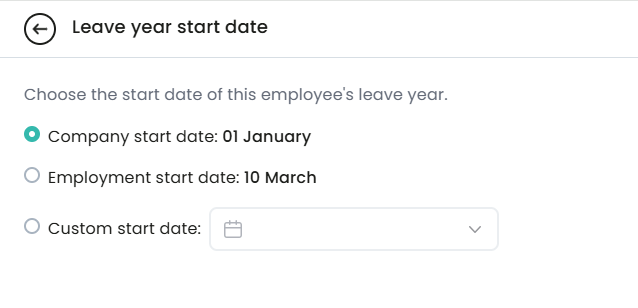
- Click on Employment start date and the on Save changes
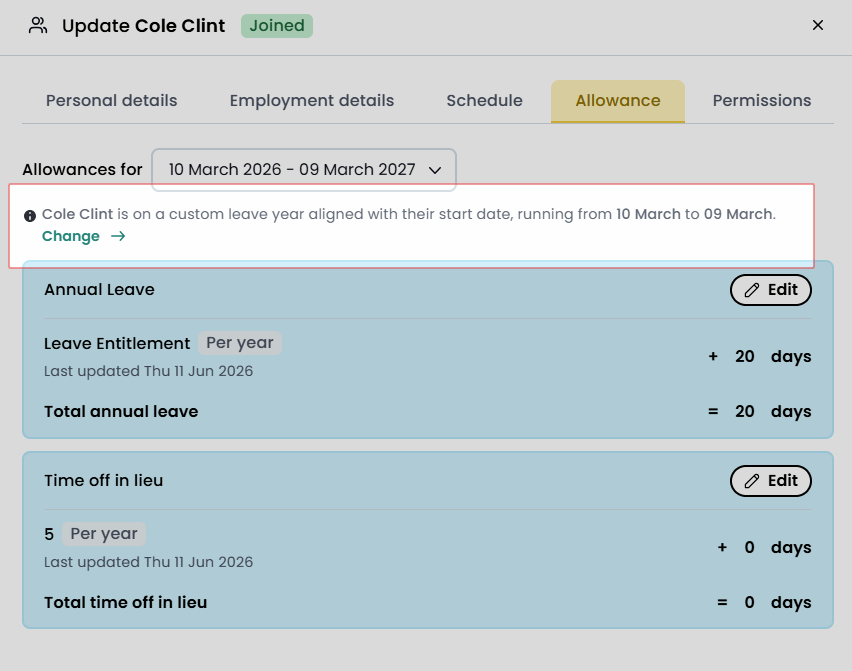
Click again Save changes
That's it!
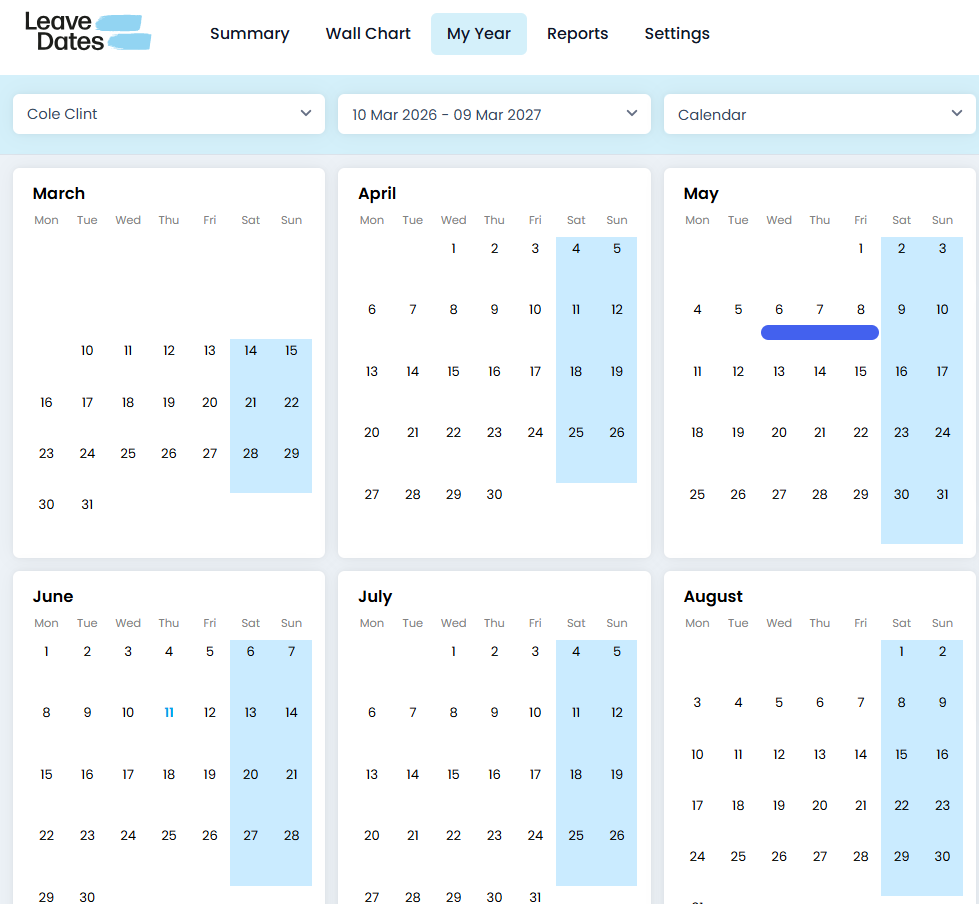
In the My Year page, the new leave year will be shown for this employee.
Notes
- Admin users still need to create new calendars for each year. These will then create the leave allowance years for employees using this functionality. For example, if the calendar runs from 1st Jan 2026 to 31st December 2026 and your employment start date is 10th March 2026, then your first allowance period will be 10th March 2026 — 9th March 2027. To create a second allowance period for 10th March 2027 — 9th March 2028, just add a new calendar.
- You also still need to configure your leave allowances using the normal process.