
Setting the employee's allowance unit
By default, every employee in Leave Dates uses the allowance unit set for the company, which will either be tracked in days or hours. In some situations, however, you may need a specific employee to use a different allowance unit. For example, you may want to record leave in hours for a part-time employee while the rest of the company continues using days.
This guide explains how to override the company default for an individual employee.
On this page
Change an employee’s allowance unit
Understanding the allowance units
How the allowance is converted
Before you begin
Leave Dates uses a default inheritance system. Most employee settings are automatically inherited from the company to keep administration simple.
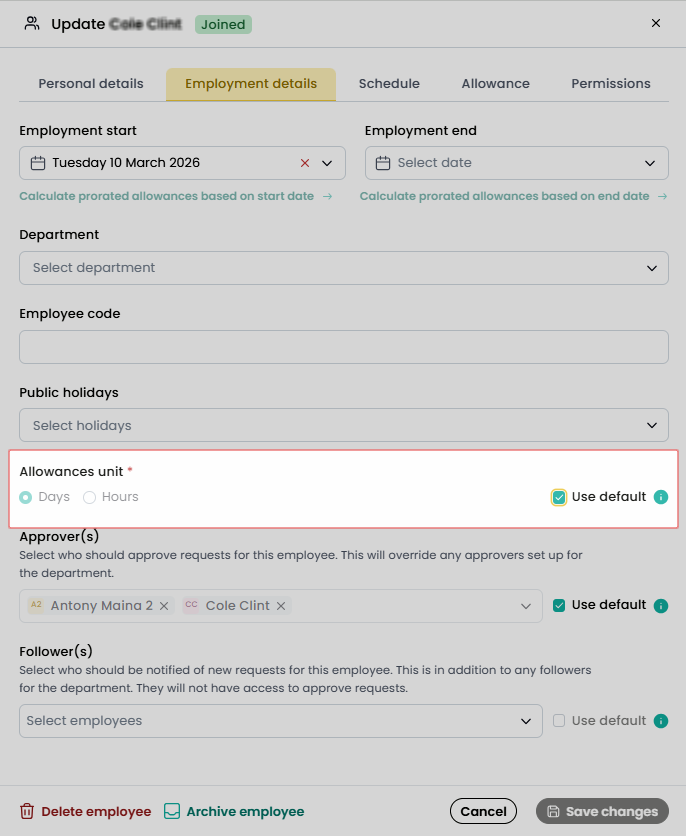
If the Use default option is enabled for an employee's allowance unit, that employee will always use the company-wide setting. To assign a different allowance unit, you'll need to manually turn off this option in the employee’s record.
Change an employee's allowance unit
- Go to Settings > Employees.
- Select the employee you want to update.
- Open the Employment details tab.
- Scroll to Allowances unit.
- Clear the Use default checkbox.
- Select either:
- Days, or
- Hours
- Click Save changes.
Understanding the allowance units
Days
Choose Days if the employee's leave entitlement is measured in days. All leave figures will then be represented in days including in their leave requests, My Year summary and Wall chart details, as well as in any reports run by company admins.
Employees can still request:
- Full-day leave
- Half-day leave
- Custom time periods within a working day (which will show as a pro-rata days figure - e.g. 6 hours booked of a 7.5 hour working day = 0.8 days).
Hours
Choose Hours if the employee's leave entitlement is measured in hours. All leave figures for this employee will then be represented in hours throughout Leave Dates.
Employees will be able to select the exact start and end time for their leave on each working day. For example, they might request leave from 10:00 AM to 1:00 PM, with 3 hours deducted from their total allowance.
For hourly employees, Leave Dates largely ignores the employee's specific working hours (e.g., 9:00 AM to 5:00 PM). The schedule is only used to determine working vs. non-working days. This means an employee can request leave outside their usual hours, such as 8:00 AM to 9:00 AM, and the system will still deduct that hour. This flexibility was designed to accommodate part-time or irregular schedules, operating on the assumption that employees know their own needs best.
How the allowance is converted
When you change an employee's allowance unit from Days to Hours (or vice versa), Leave Dates automatically convert their remaining allowance to the new unit. This ensures the employee doesn't lose or gain any leave value during the switch.
The conversion is based on the employee’s “Hours per working day” setting, which is configured on the employee’s profile under the “Schedule” tab. This setting defines how many hours make up a standard working day for this employee.
Converting from Days to Hours
If you switch an employee from Days to Hours, their allowance is multiplied by the "Hours per working day" value.
Example:
- Hours per working day = 7
- Current allowance = 24 days
- New allowance in hours = 7 hours per day * 24 days = 168 hours
Converting from Hours to Days
If you switch an employee from Hours to Days, their allowance is divided by the "Hours per working day" value.
Example:
- Hours per working day = 7
- Current allowance = 168 hours
- New allowance in days = 168 hours / 7 hours per day = 24 days
This conversion only applies to the employee's current year’s allowance. It does not affect historical allowances or leave records. The system performs this calculation automatically when you save the change.
Revert to the company default
If you no longer need a custom allowance unit for the employee:
- Return to Settings > Employees.
- Open the employee's Employment details.
- Enable Use default.
- Select Save changes.
The employee will immediately inherit the allowance unit configured under Settings > Company.